Getting Started
This guide will walk you through setting up and running your first Meeting Signals session.
Creating Your Account
- Go to meetingsignals.com
- Click Sign Up in the top right
- Enter your email address and create a password
- Verify your email address
Tip
You can create and join Signal Sessions without signing up. However, creating an account gives you a log of your last 30 days of Signal Sessions.
Creating Your First Signal Session
- Click Create Meeting from the app home page
- Enter a name for your session (e.g., "Sales Call with Acme Corp")
- Select a Signal Panel
- Click Create
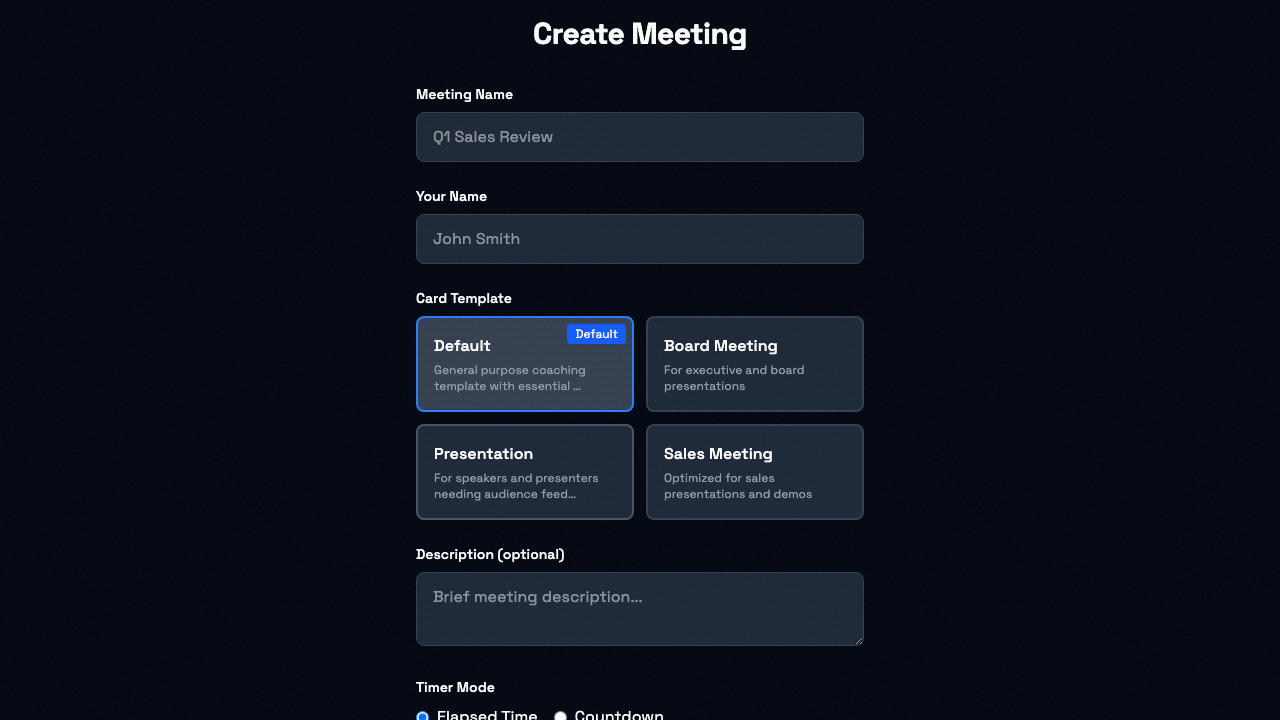
You'll be taken to your Signal Session with a unique session code.
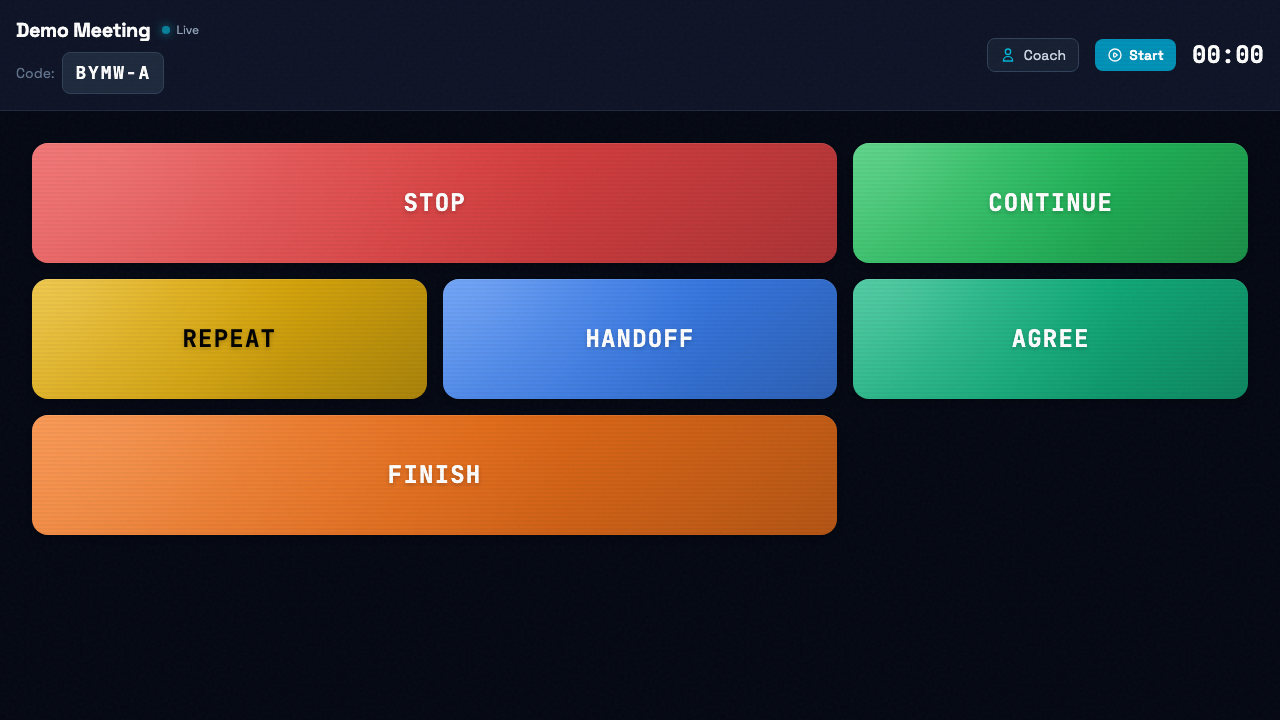
Sharing the Session
There are two ways to invite participants (Pro subscribers can also send email invitations):
Option 1: Share the Link
Click the session code next to Invite link in the session header to copy the full session URL. Send this to anyone who needs to join.
Option 2: Share the Code
Give participants the 6-character session code. They can enter it at meetingsignals.com/app/join. Codes are case-sensitive, so they must type upper- and lowercase letters exactly as shown.
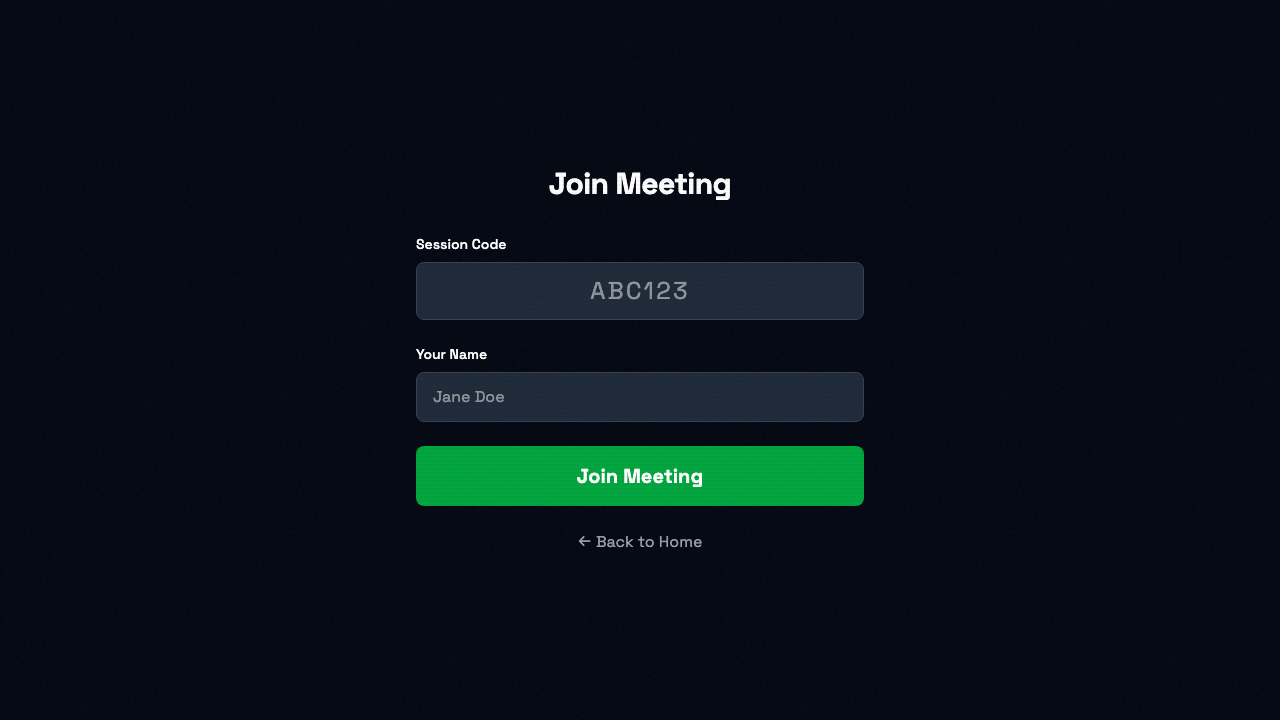
Sending Messages
Once participants have joined:
- Tap any Signal Card (e.g., "SLOW DOWN", "WRAP UP")
- The message appears full-screen on all connected devices
- Tap the message to dismiss it for everyone
Using the Timer
The Signal Session includes a built-in timer:
- Elapsed Time (default): Shows how long since the timer was started
- Countdown: Counts down from a set duration to zero
Choose the mode when you create the session:
- On the New Meeting form, pick Elapsed Time or Countdown under Timer Mode
- For countdown, enter the Duration (minutes)
- In the session, click Start to start the timer and Reset to set it back
The timer stays in sync for everyone in the session.
Best Practices
- Keep it simple: Use only the message cards you need
- Agree on meanings: Make sure all participants understand what each signal means
- Practice first: Try a quick test session before an important meeting
- Device usage: Best practice is to use a separate device for your Signal Sessions
Next Steps
- Learn about Signal Panels for different meeting types
- Explore account and billing options