Creating and Managing Signal Sessions
Creating a Signal Session
From the App Home
- Navigate to meetingsignals.com/app
- Click Create Meeting
- Enter a session name (optional but recommended)
- Select a signal panel
- Click Create
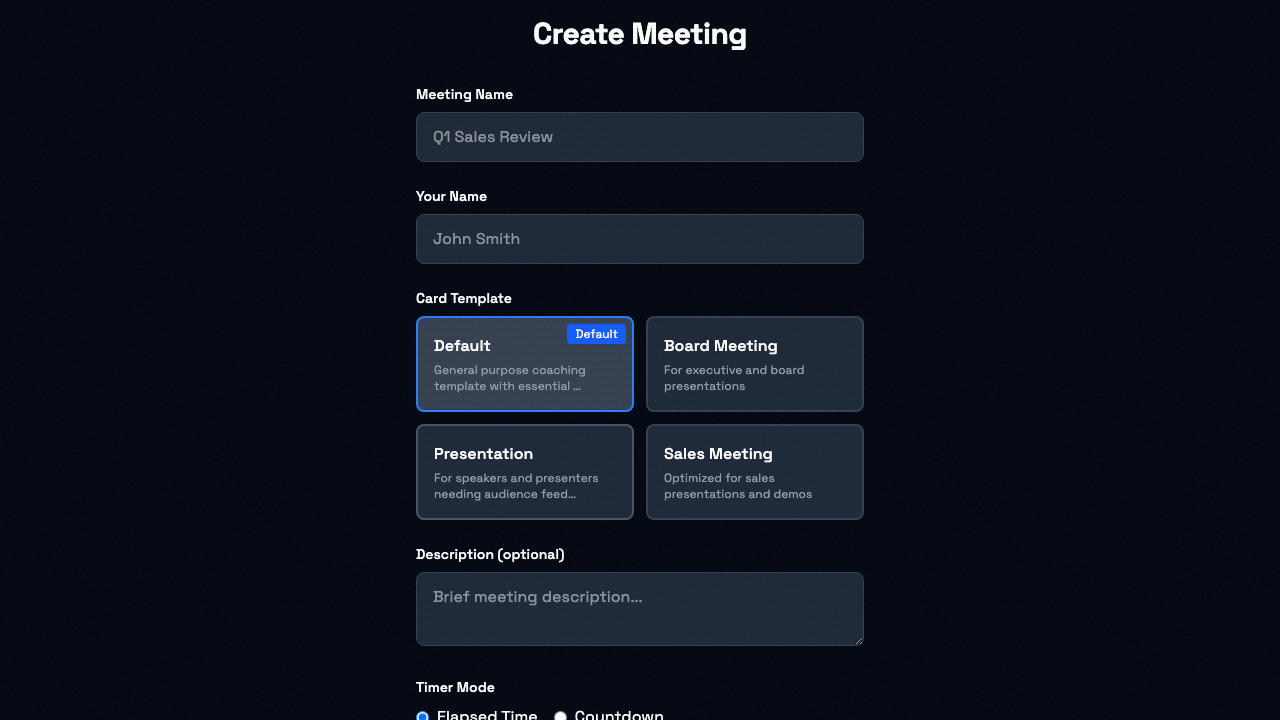
Quick Create
If you're in a hurry, you can create a Signal Session with just one click - the name is optional and a default panel will be used.
Session Codes
Every Signal Session gets a unique 6-character code (e.g., aBc123). This code:
- Is case-sensitive —
aBc123andABC123are different codes, so enter it exactly as shown - Can be shared verbally, via text, or through the link
Tip
Sharing the link or an email invitation avoids typing mistakes, since it carries the code exactly.
Joining with a Code
- Go to meetingsignals.com/app/join
- Enter the 6-character code, matching upper- and lowercase letters exactly
- Click Join
The Signal Session
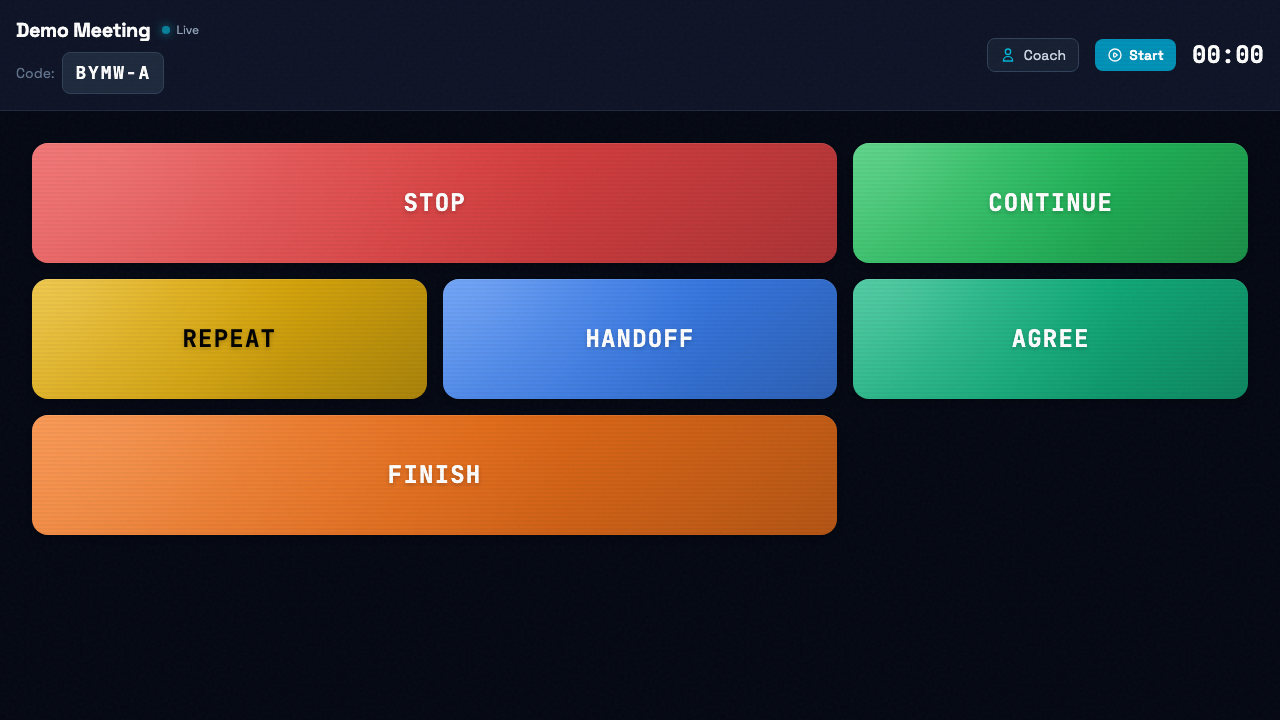
Signal Cards
The main area displays your Signal Cards based on the selected panel. Each card:
- Shows a short label
- Uses a distinct color for quick recognition
- Sends instantly when tapped
Timer Display
The timer in the top area shows one of these, depending on the Timer Mode chosen when the session was created:
- Elapsed time: How long since the timer was started
- Countdown: Time remaining until zero, with a progress ring
Click Start to start the timer and Reset to set it back. Anyone in the session can use these, and the timer stays in sync for everyone.
Session Controls
- Invite link - Click the session code to copy the shareable session URL
- Exit - Leave the session and return to the app home
- End Game - Host only, on Game Panels: end the game and announce the winner (see Game Mode)
Participant Roles
There are two implicit roles in a Meeting Signals session:
Coach/Sender
The person sending signals. They see the full Signal Panel with all Signal Cards.
Receiver
The person receiving signals. They typically have Meeting Signals open in a secondary window or on a separate device, positioned where they can see alerts without disrupting their main activity.
Tip
For presentations, the receiver might share their screen with the audience while keeping Meeting Signals visible only to themselves on a secondary monitor.
Screen Management
Wake Lock
Meeting Signals automatically requests a screen wake lock on supported devices. This prevents your screen from dimming during a long meeting.
Full-Screen Mode
Messages display as full-screen overlays to ensure they're noticed. The overlay:
- Covers the entire viewport
- Shows the message in large text
- Uses the card's configured color
- Stays up until someone taps it, which dismisses it for everyone
- Is replaced when anyone sends a new signal
Best Practices
- Name your sessions - Makes them easier to find in your history
- Choose the right panel - Pick cards that match your meeting type
- Test before important calls - Run a quick practice session
- Keep the tab visible - Messages only display when the tab is active
Troubleshooting
Messages Not Appearing
- Ensure the browser tab is active and visible
- Check that the connection indicator says Live (it shows Reconnecting... while the connection is down)
- Try refreshing the page
Connection Lost
If you see a disconnection message:
- Check your internet connection
- Refresh the page
- Rejoin using the same session code (it is case-sensitive)
Timer Not Visible
The timer displays in the Signal Session header. If you don't see it:
- Scroll to the top of the page
- Check if your browser window is too narrow